Use the Avatar panel to connect
Use the Avatar Menu to See Availability and Connect with Colleagues
The Avatar menu helps you quickly check a colleague’s availability and reach out without having to leave the office view. By clicking any avatar, you can see key employee details and start a conversation or meeting in just a few clicks. This makes everyday collaboration faster and more natural, especially for hybrid and remote teams.
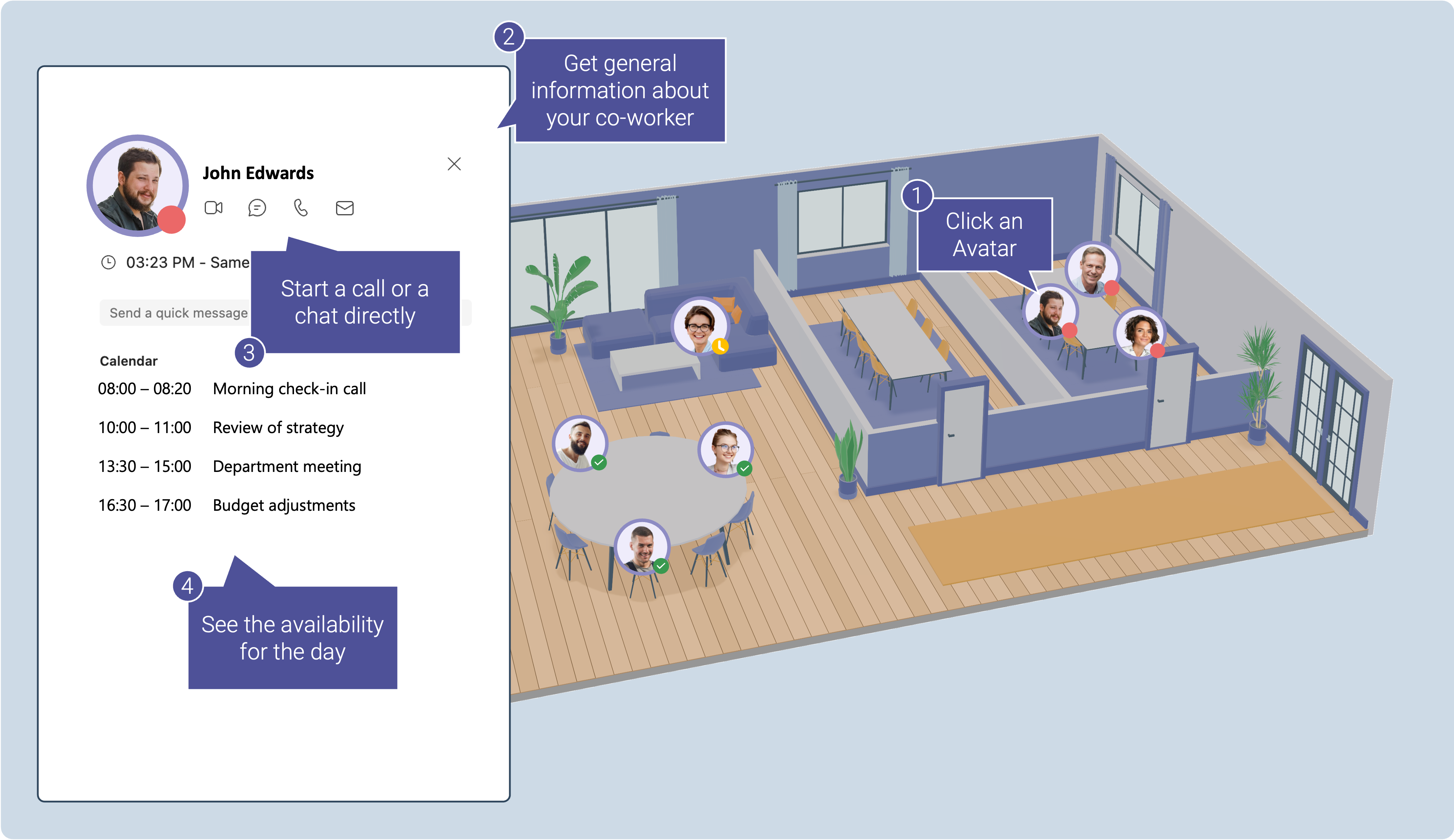
Open the Avatar Menu
Go to the online office.
Click any employee avatar.
The Avatar menu opens instantly with up-to-date information about that person.
View Employee Information
In the Avatar menu, you can see helpful context about your colleague, including:
Status : Available, Busy, or Away (see View and Set Your Presence Status in BeZoned )
Today’s schedule: Pulled directly from the Outlook calendar
Physical location: Where the employee is working from
Timezone: Useful when working across regions
This information helps you decide the best time and way to reach out.
Contact a Colleague
From the Avatar menu, you can take action right away:
Click Send message to start a quick chat.
Click Start Teams meeting to launch a Microsoft Teams call.
You don’t need to switch tools or search for contact details—everything is available in one place.
Tip
Use the Avatar menu before reaching out to avoid interrupting colleagues who are busy or in meetings.
Was this helpful?
Still need help? Ask the team