Use and Set your Status
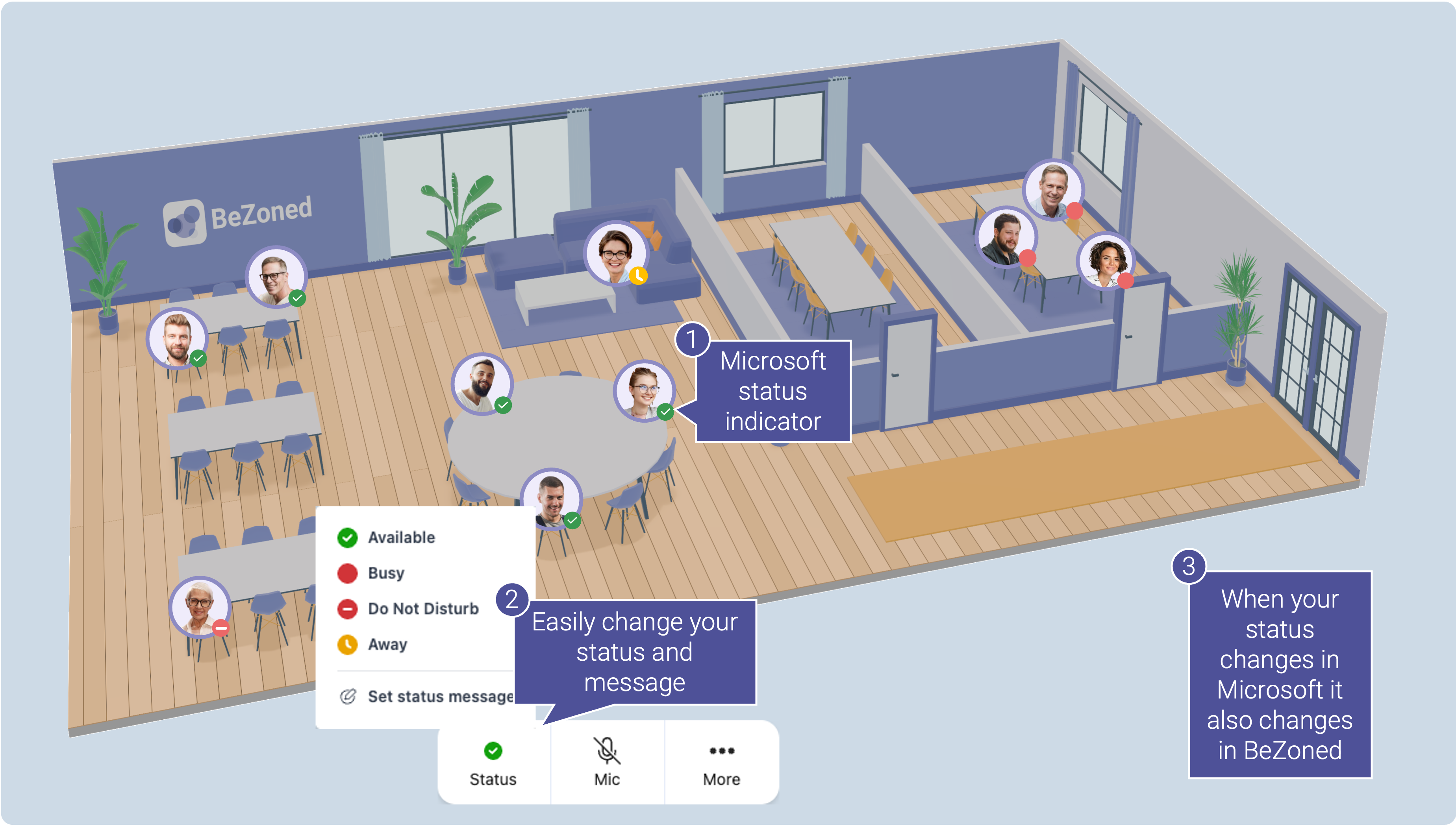
In BeZoned, you set your Status to let colleagues know your availability - for example, Available when you’re open to interruptions, Busy or Do Not Disturb when you need to focus, or Away when you’ve stepped out for a short or longer period. You can also add a Status message to give others more context about your availability.
BeZoned integrates directly with Microsoft 365 to display each employee’s presence status on their avatar in the online office. This makes it easy to understand who is available at a glance, using statuses your team already knows.
Statuses you can set in BeZoned are:
Available
Busy
Away
Do not disturb
Because these statuses are familiar from Microsoft Teams and Outlook, there’s no learning curve for your team.
Automatic synchronization with Microsoft 365
Presence statuses in BeZoned are automatically synchronized with:
Your Outlook calendar
Your Microsoft Teams presence
For example, when someone joins a meeting, their status automatically updates to Busy or Do not disturb. When the meeting ends, the status updates again without any manual action. This ensures the BeZoned office always reflects real-time availability.
Manually set your status
You can also update your status yourself at any time.
To set your status:
Open the user menu at the bottom of the screen.
Select your preferred status (Available, Busy, Away, or Do not disturb).
Close the menu. Your avatar updates immediately in the online office.
This is useful when your availability changes but is not reflected in your calendar or Teams status.
Add a status message to give more context
In addition to your presence status, you can set a status message in BeZoned. A status message helps coworkers understand what you are doing right now, not just whether you are available.
For example, instead of only showing Busy, your avatar can also display a message like “In a customer call” or “Focusing on a deadline”. This extra context reduces interruptions and sets clear expectations.
The status message is also synchonized with Microsoft 365, and thus easy to see both in the BeZoned avatar menu, and other Microsoft 365 applications.
Tip
💡 When placing your avatar in the lounge area, set your status to Available if you are open for conversations, or Away if you are actually away from your work. This helps colleagues know whether it’s a good time to reach out.
Was this helpful?
Still need help? Ask the team