Sitting at Tables
How Tables Work for Team Collaboration
Tables are used to form small, ad-hoc teams inside the office.
Click a table to place your avatar there.
As soon as you sit down, audio is automatically connected with everyone at the same table.
Each employee controls their own microphone and can mute or unmute at any time.
When your microphone is open, everyone at the table can hear you.
This setup makes it easy to start natural conversations without scheduling meetings or managing calls.
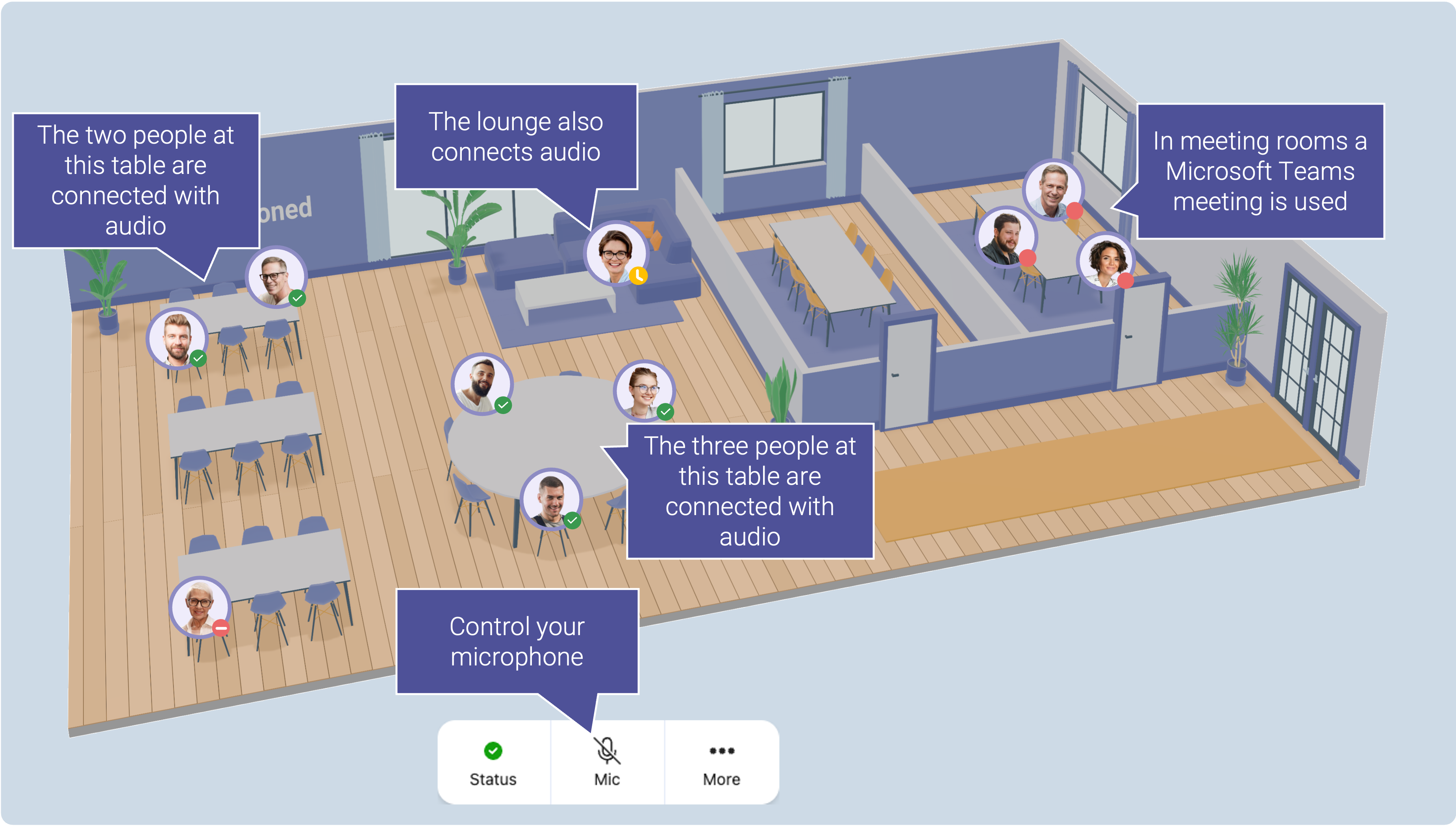
General Purpose Tables
Teams often designate one or more tables as general-purpose. These are shared spaces where people sit when they’re generally available and open to listening in or joining spontaneous team conversations.
Special-Purpose Tables for Focus
Teams can dedicate specific tables for special purposes, depending on how the office wants to work.
Common examples include:
Focus tables – signal that you are concentrating and should not be disturbed.
Mute tables – indicate quiet work, with no open microphones.
When you place your avatar at one of these tables, you clearly communicate your current work mode to colleagues—without needing to send messages or status updates.
How Tables Connect to Microsoft Teams
Each office is connected to a Microsoft Teams Team.
Each table inside the office is connected to a specific Microsoft Teams Channel.
This connection allows you to bring Microsoft Teams productivity tools directly into your daily work.
Access Microsoft Teams Tools from a Table
You can access tools linked to a table by right-clicking it.
From the table menu, you can:
Open Whiteboards for brainstorming
Use Planner for task management
Work with shared documents
Access any other tools added as Tabs in the connected Teams channel
Jump directly to the corresponding Teams channel using a shortcut
You can add as many tools as you like by configuring Tabs in the Microsoft Teams channel connected to the table.
What’s Next
Set up your tables to match how your team works - collaboration, focus, or quick check-ins, and connect the right Microsoft Teams tools to each one. This helps your office stay productive without friction.
Was this helpful?
Still need help? Ask the team