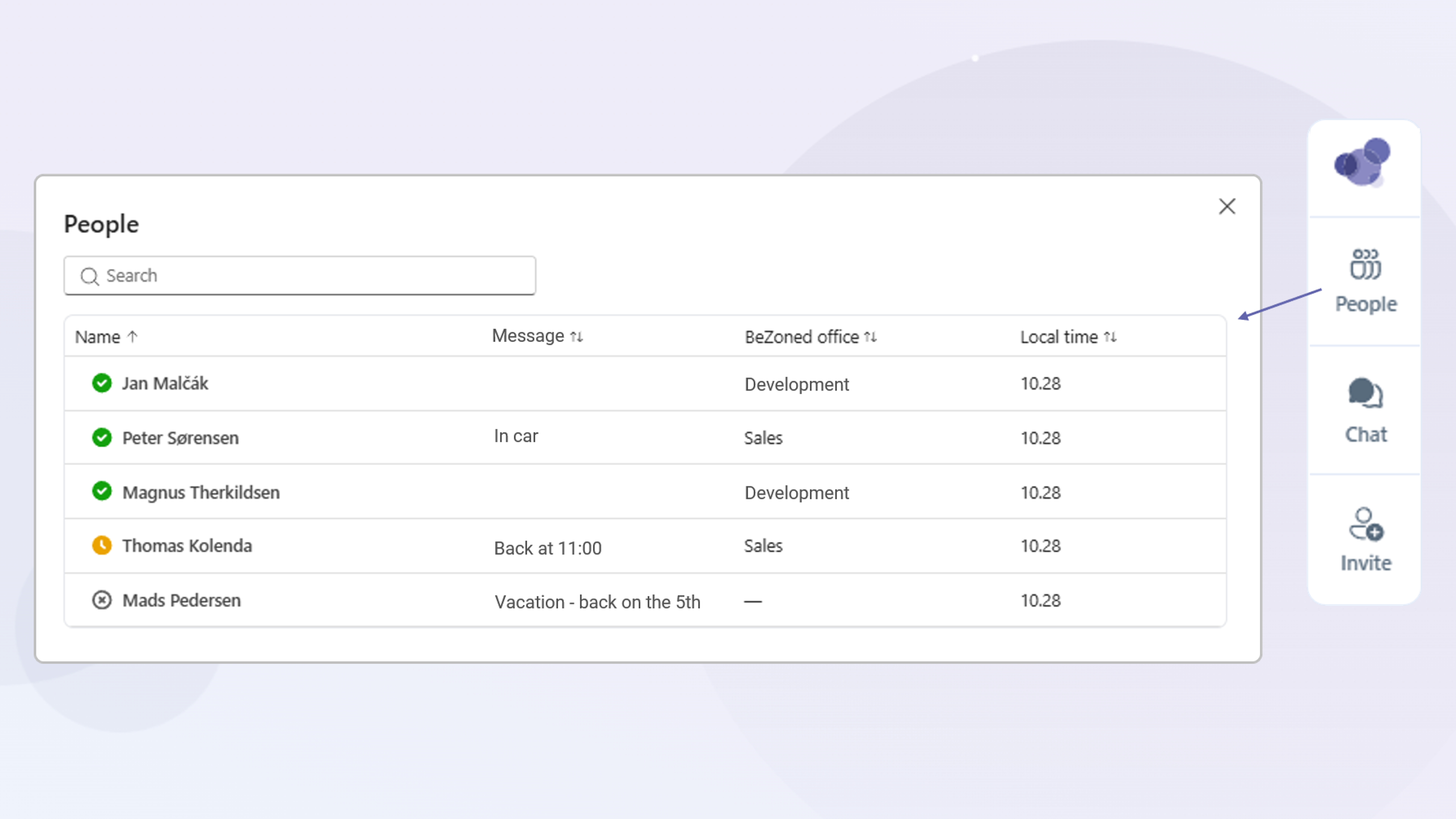
The People view helps you see your full team in one place. With this update, you can view not only the people who are currently in the virtual office with you, but everyone on your team. This makes it easier to understand who is available, who may be busy, and when someone might be free to talk.
Open the People View
In your BeZoned office, go to the office menu on the right side.
Click the People icon.
The People view opens and shows your team list.
From here, you can quickly check who is available and get a broader overview of your team’s presence.
Sort the People List
You can sort the list to find people more easily.
Open the People view.
Click the small arrows in the list header.
Review the updated order of the people list.
Sorting helps you scan the team list faster, especially when many people are part of your virtual office.
Open an Avatar Window
You can also open more details about a person directly from the People view.
Find the person in the list.
Click the person’s name.
The person’s Avatar window opens.
Use the Avatar window to check more information, such as the person’s calendar.
This is useful when you want to see whether someone is available now or when they may be free later.
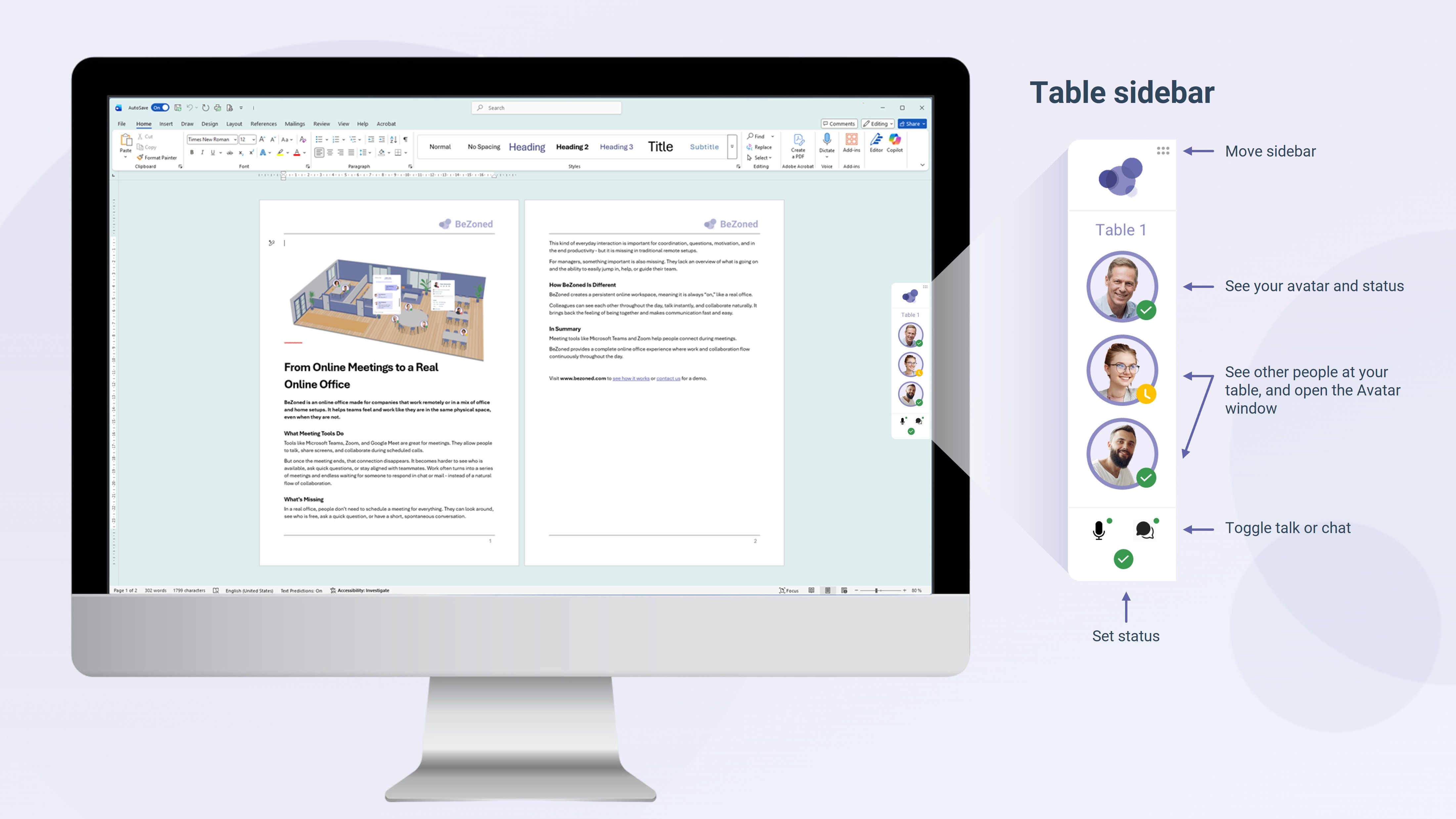
Note: Your Status text can be changed in the Status menu.
Your Input Helps Us Improve
This is the first version of the People view. As always, we really value your input so we can continue improving the functionality and create the best experience for you.