New Office configuration and logo
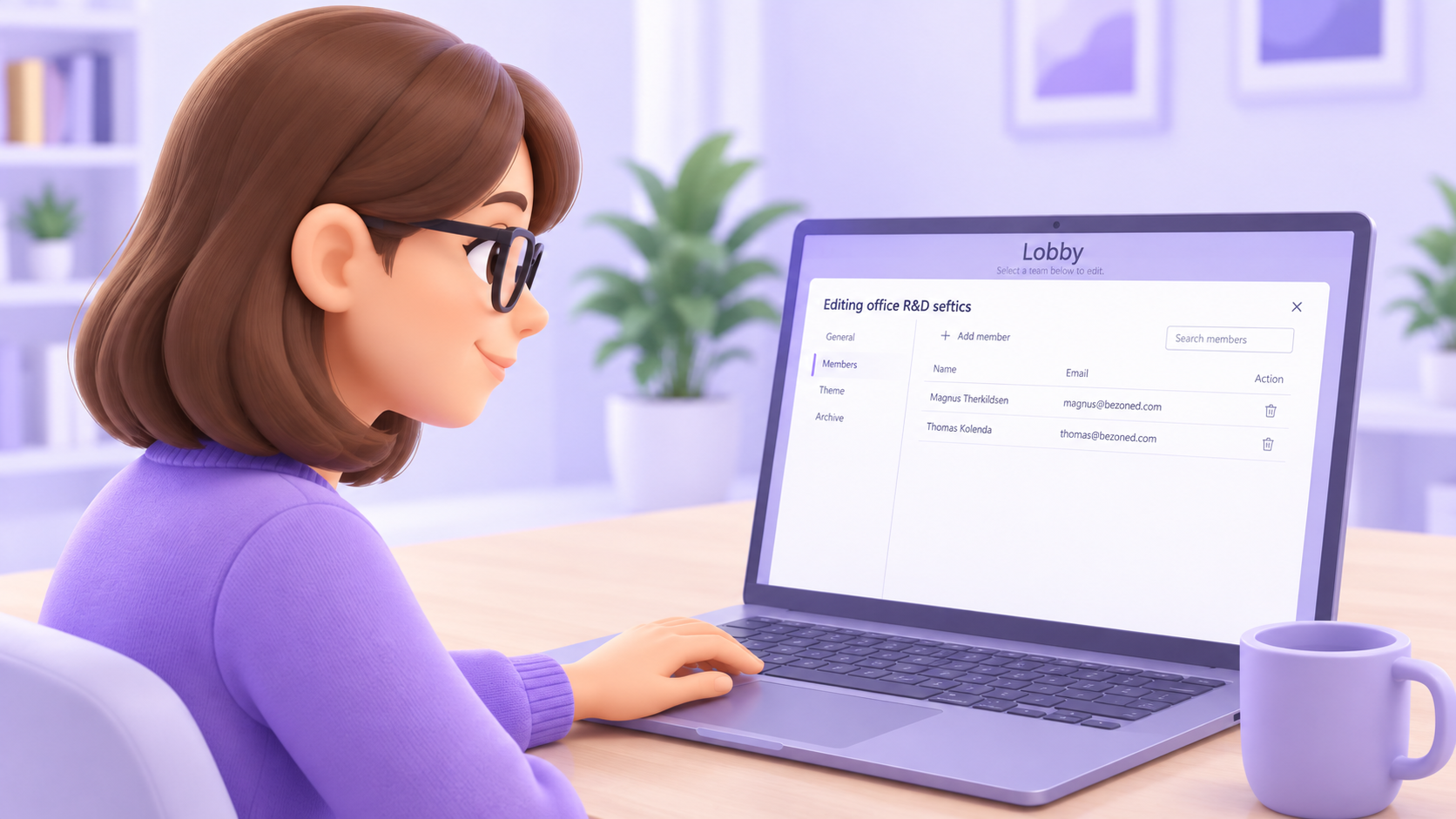
You can now configure and manage each office directly from the Lobby area - giving you options and flexibility in how your online office is setup.
Whether you need to update a name, adjust access, or align the space with your brand, everything is now easily accessible.
To access the Office Setting’s go to the Lobby area and click the menu icon in the top-right corner, and then select Edit.
Each listed office now includes a gear icon for quick access to its settings. If the gear icon is white, you can click it to open the Office Settings window. If it is grey, you will need to contact the office administrator for access.
Inside the Office Settings window, you will find several configuration options. Below are the most important:
Rename office
Update the office name in the General pane. This also updates the name of the connected Microsoft Teams group. The name must be unique within your Microsoft Teams account.Manage members
Add or remove people who have access to the office from the Members pane. Click the plus button and search for people within your Microsoft Teams account.Customize office logo
Upload your company or team logo in the Theme pane. The logo will be displayed inside the office, replacing the default BeZoned logo.Archive office
Offices are not deleted but archived from the Archive pane and can be restored if needed. This action also archives the connected Microsoft Teams group.
Learn more about BeZoned and upcoming activities on our web site.